
Guide 3 of 9
How do I take a photo of a meal with Ubod's AI scan?
By the Ubod team · · 3 min read
In Ubod, tap the + on a meal, choose the AI Scan tab, take a photo of your plate (or pick one from your gallery), answer the AI's quick questions, check the foods and quantities it found, then tap the add button, for example "Add to Lunch". The AI estimates the calories, protein, carbs and fat of each food.
Before you start
- The free plan includes a limited number of AI scans, shown on the AI Scan tab (for example 3/3). The Pro plan gives you more.
- Ubod needs access to your camera. If no camera is available, the Gallery button lets you send a photo you already have.
The 5 steps
Open the AI Scan
From the Meal screen, tap the + on the right meal, then the AI Scan tab. The first time, Ubod shows three tips: fit the whole meal in the frame, every item should be visible, and check there is enough light. Tap "Take a photo".
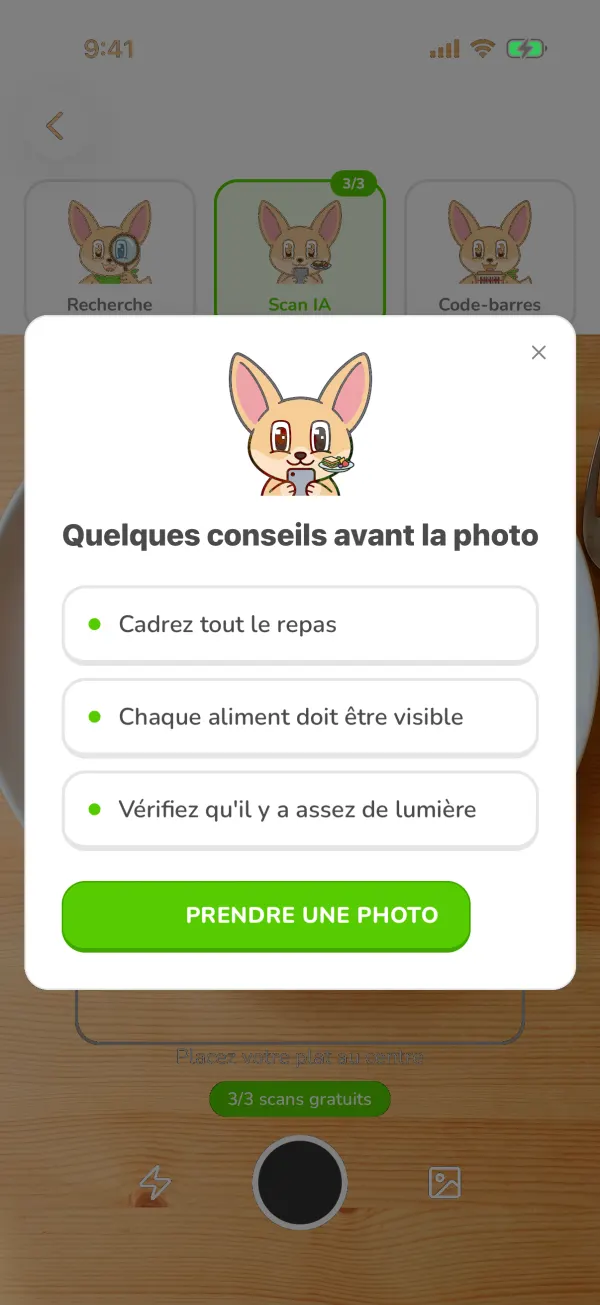
The tips Ubod shows before an AI Scan photo: fit the whole meal in the frame, make every item visible, have enough light Take a photo of your plate or pick one
Put the dish in the center of the frame and tap the shutter button. The icon at the bottom right opens your gallery if you already took the photo. When no camera is available, the screen shows the Gallery button right away.
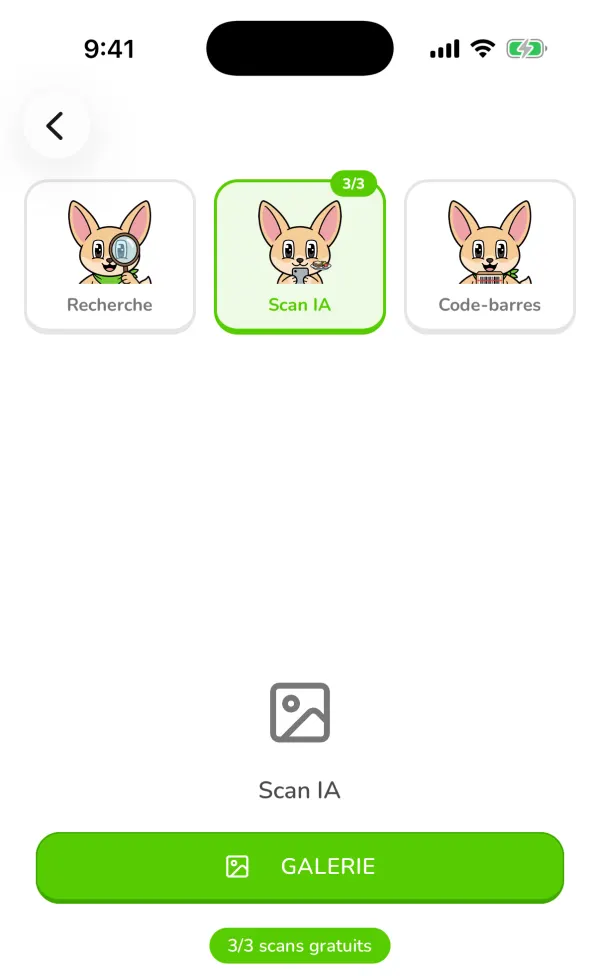
The Ubod AI Scan tab with the Gallery button and the free scan counter Answer the quick questions
When a detail changes the calories, the AI asks you: "Is the rice brown or white?", "Was the salmon cooked with fat?". Tap the right answer, or "Other…" to type it, then Apply changes. Skip keeps the first estimate.
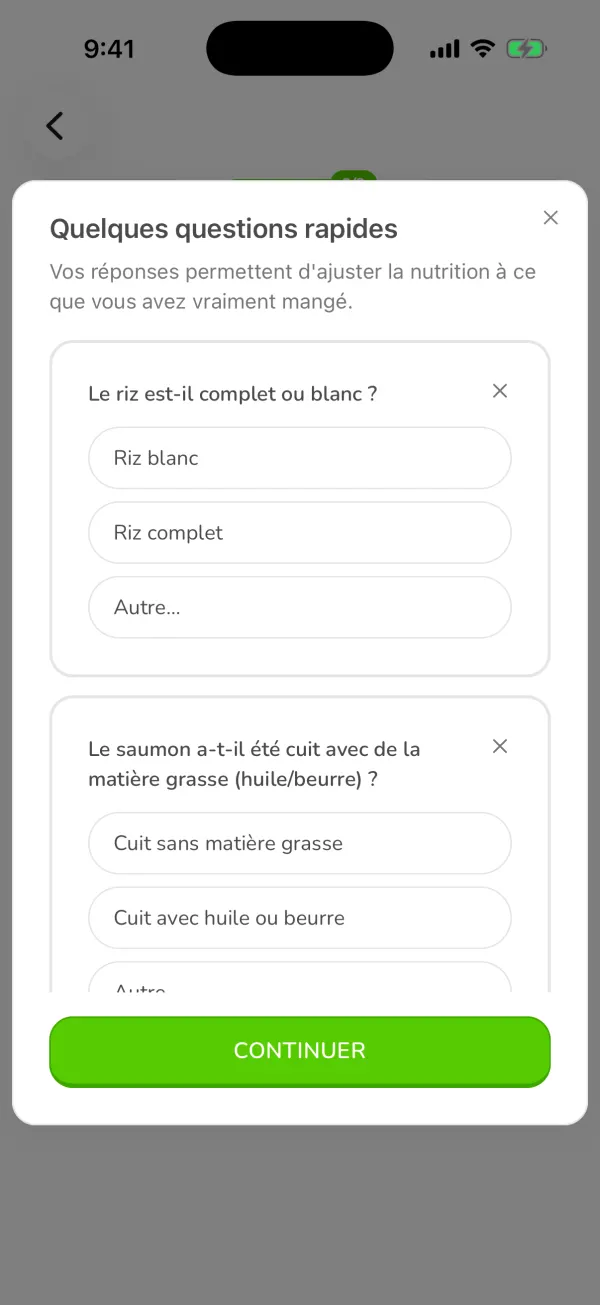
The Ubod AI Scan quick questions about the type of rice and how the salmon was cooked Check what the AI found
Ubod shows the photo, a name for the meal and each food it recognized with its estimated quantity and calories, for example grilled salmon, about 120 g, 268 kcal. "Verified data" marks a food matched with the Ciqual database. Remove an extra food with the cross. To fix something, type it in "Edit with AI", for example "the bacon is turkey bacon", then Apply changes.
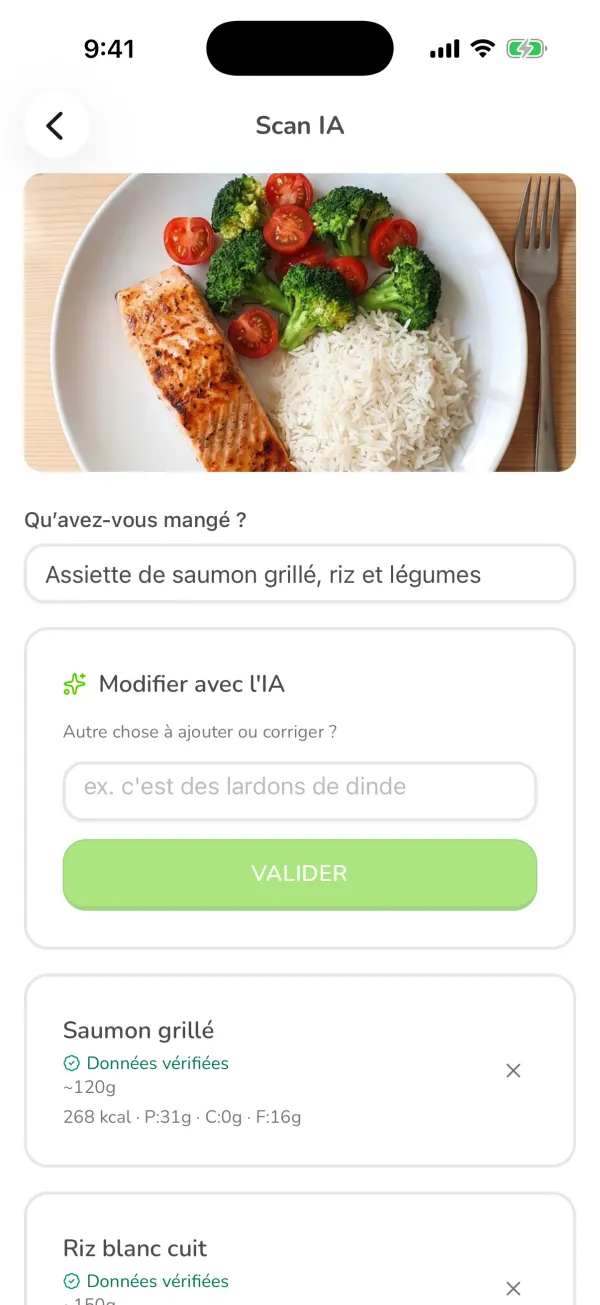
The Ubod AI Scan review screen with a photo of salmon, rice and broccoli and the foods it found Add the meal
At the bottom, "Estimated Nutrition" adds up the whole meal (here 546 kcal, 39 g of protein, 55 g of carbs, 18 g of fat). Tap the add button, which names your meal (for example "Add to Dinner"), to log it, or "Save as recipe" to keep it and add it again later with one tap.
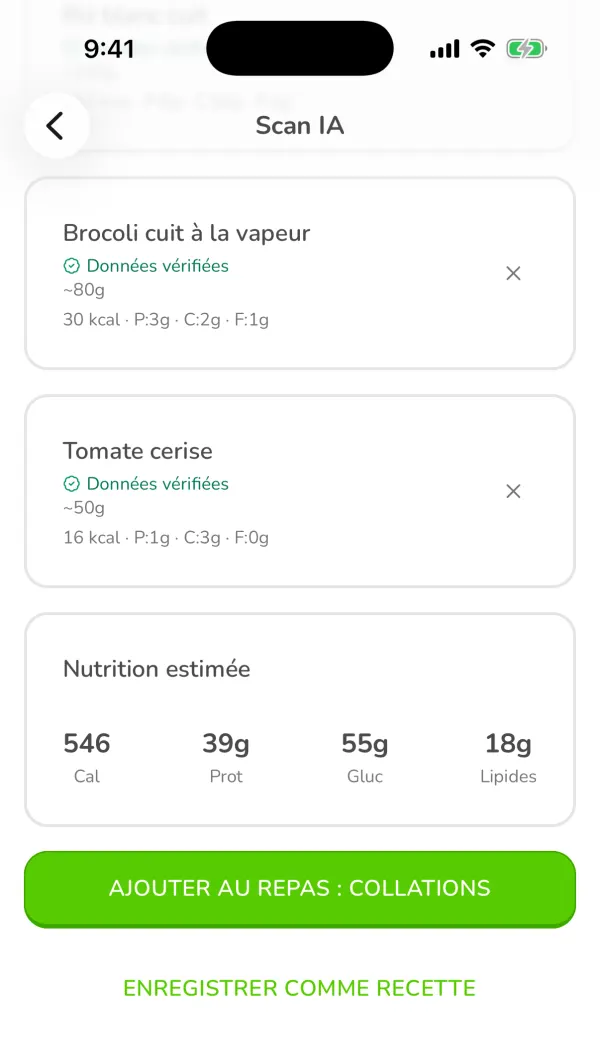
The Estimated Nutrition total of 546 kcal with the add button and the Save as recipe button in Ubod
Frequently asked questions
Is Ubod's AI photo scan accurate?
It recognizes the foods you can see and estimates their quantities. The quick questions and the review before adding are there to correct what a photo cannot show, like cooking oil.
Is the AI scan free?
The free plan includes a limited number of scans, shown on the AI Scan tab. The Pro plan gives you more.
What if the AI finds nothing?
It does not make up a result. Take a sharper, better lit photo, or add the foods with the search.

Try Ubod for free
Calories, photo scan, barcode, recipes and Fanak, your nutrition coach.