
Guide 5 of 9
How do I scan a barcode in Ubod?
By the Ubod team · · 1 min read
In Ubod, tap the + on a meal, choose the Barcode Scanner tab and point your camera at the product's barcode. Ubod opens its page with the calories and macros: choose the portion and tap "Add to Meal".
Before you start
- Barcode scanning works in the iPhone and Android app, which needs access to your camera.
- If the camera can't read the code, type the number printed under the bars in the field provided, then tap Look up.
The 3 steps
Open the Barcode Scanner tab
On the Meal screen, tap the + on the right meal, then the Barcode Scanner tab, to the right of Search and AI Scan.
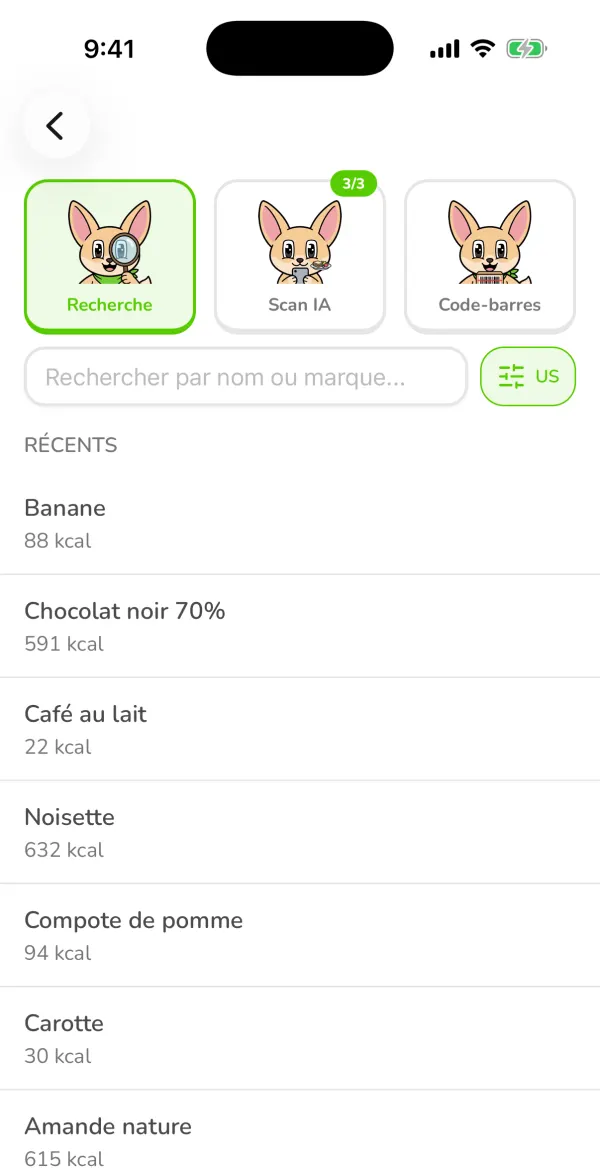
The three tabs Search, AI Scan and Barcode Scanner on the Ubod add screen Aim at the barcode
Place the barcode in the frame, flat and sharp. It reads automatically, so there is no need to tap. In a dark place, the lightning bolt at the bottom of the screen turns on the flashlight.
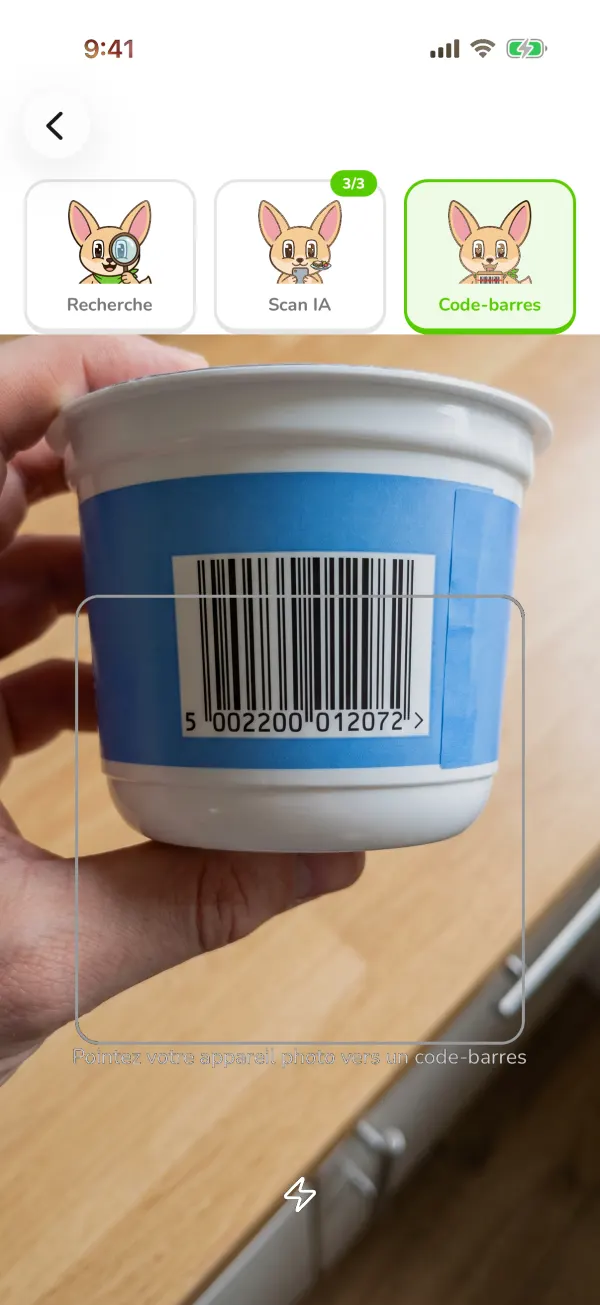
The Ubod barcode scanner pointed at the barcode on a yogurt pot Check the page and add
The product page opens: brand, Nutri-Score, calories and macros of the portion, nutrition flags. Set the quantity at the bottom, then tap "Add to Meal".
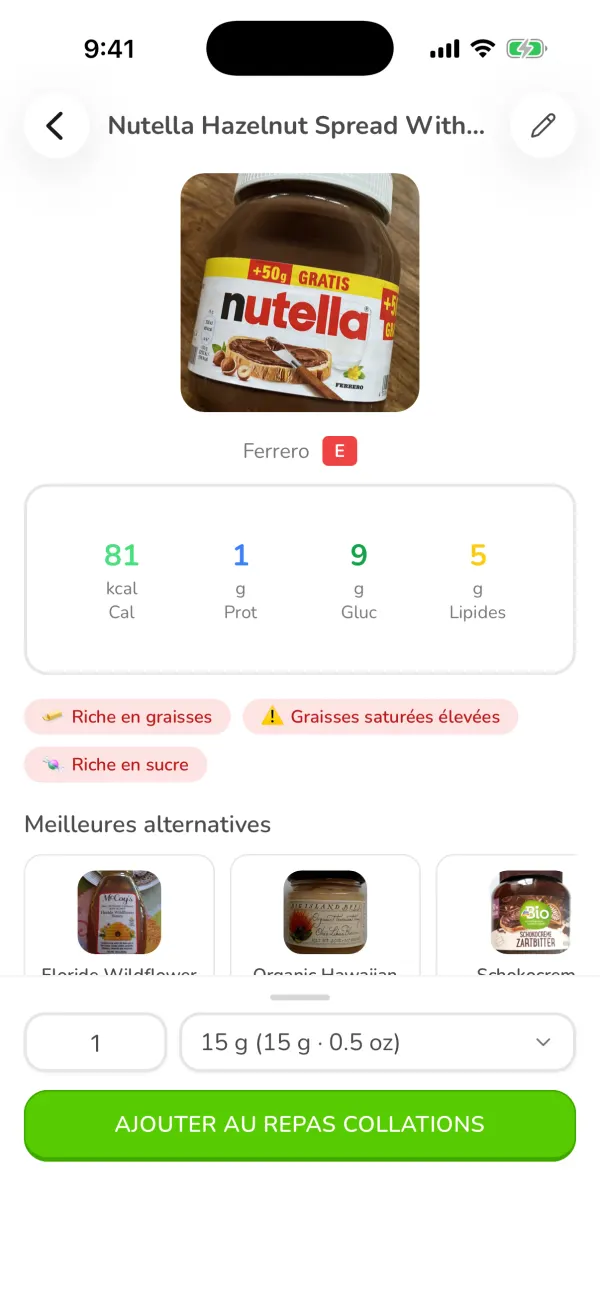
A branded product's page in Ubod with its Nutri-Score, its calories and the Add to Meal button
Frequently asked questions
Is Ubod's barcode scanner free?
Yes, barcode scanning is included in the free plan.
What if the product is not found?
Add it with two photos (the package and the nutrition label): Ubod extracts the values. You can also enter it manually.

Try Ubod for free
Calories, photo scan, barcode, recipes and Fanak, your nutrition coach.