
Complete guide
How to use Ubod: the complete guide
By the Ubod team · · 21 min read
Ubod is a calorie tracking and nutrition coaching app for iPhone and Android. To use it, you log what you eat from the Meal screen (search, AI photo scan or barcode), add recipes with everything already calculated, ask Fanak, the AI coach, your questions, and adjust your goal in Profile. You can also keep your food diary from ChatGPT or Claude.
This guide follows, in order, everything the app's guided tour shows you on day one. Each step comes with a real screenshot of the Ubod app, taken on iPhone with the app in French. On Android, the screens are the same.
You can read the guide in one go, or jump straight to the question you care about from the table of contents. Each part is also its own article, with its own frequently asked questions.
Guide 1 of 9
How do I log a food in Ubod?
In Ubod, open the Meal tab, tap the + next to the right meal (Breakfast, Lunch, Dinner or Snacks), search for the food, tap the + on the right result, choose the portion, then tap "Add to Meal". Your calories and macros for the day update right away.
Tap the + on the right meal
On the Meal tab, scroll down to the Food card. Each meal has its own green + button. Pick the one for the meal you are eating: the food goes into that meal and nowhere else. Under each meal, Ubod shows the calories already eaten and the share planned for that meal, for example 423 / 442 kcal.
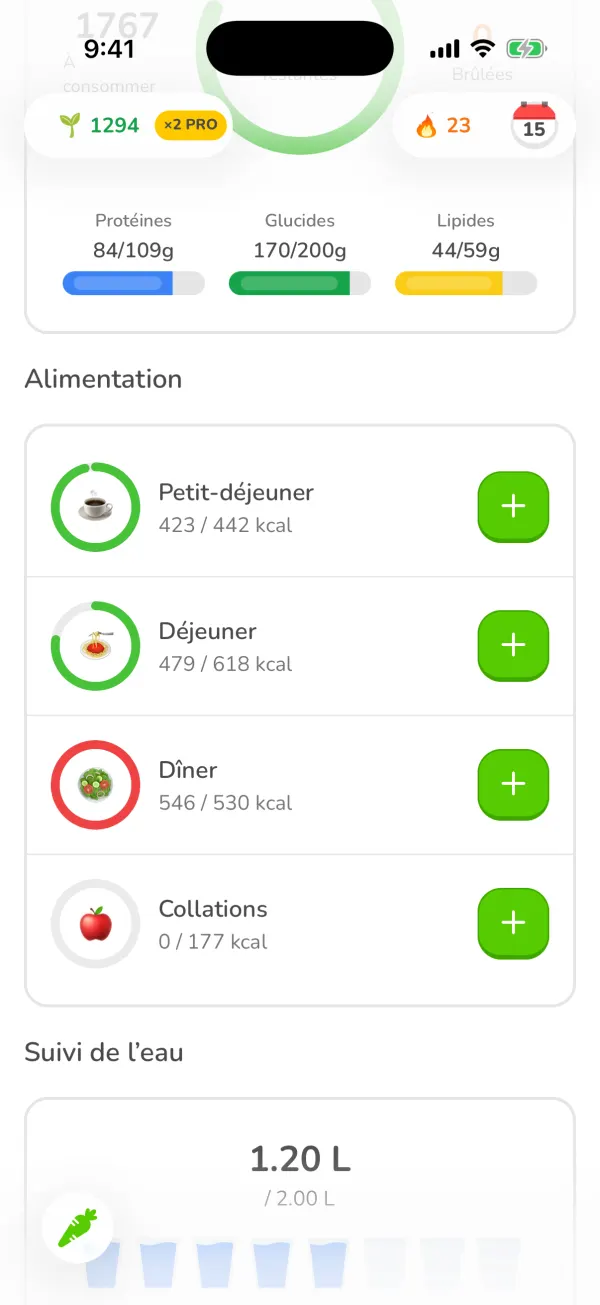
The Ubod Meal screen with the Breakfast, Lunch, Dinner and Snacks meals and their + buttons Type the name of the food
The add screen opens on the Search tab. Type at least two letters in the "Search by name or brand" field. Even before you type, the Recent list suggests the foods you log often.
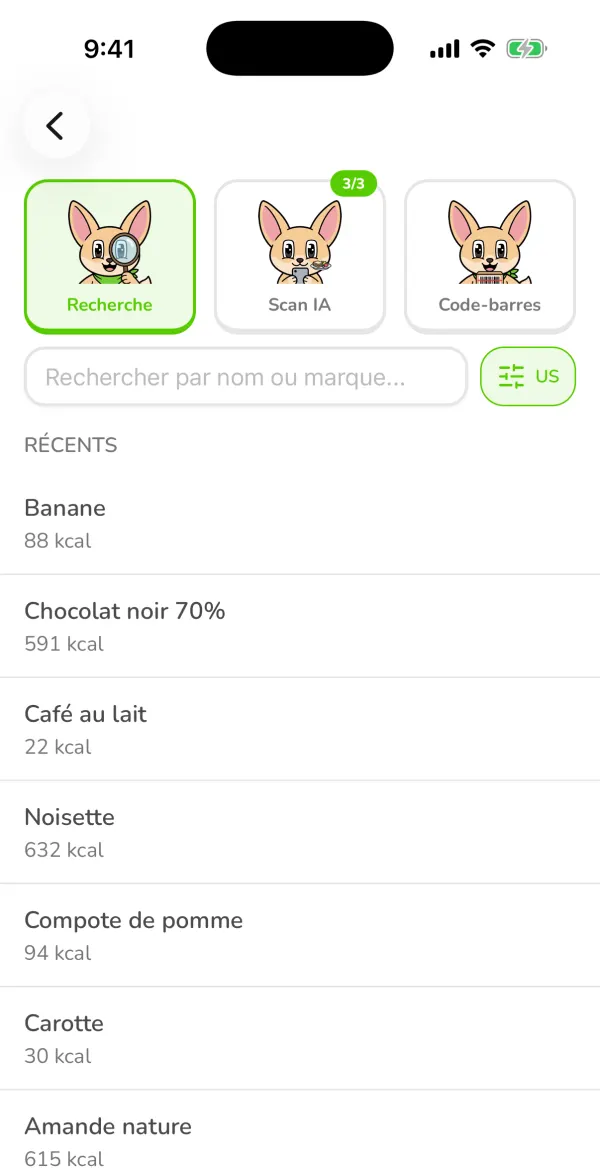
The Ubod food search screen with the Search, AI Scan and Barcode Scanner tabs and the list of recent foods Tap the + on the right result
Results show the calories per 100 g. A green check mark marks a verified food, and the Recent badge a food you have logged before. You don't have to take the first result: tap the + on the one that really matches what you are eating.
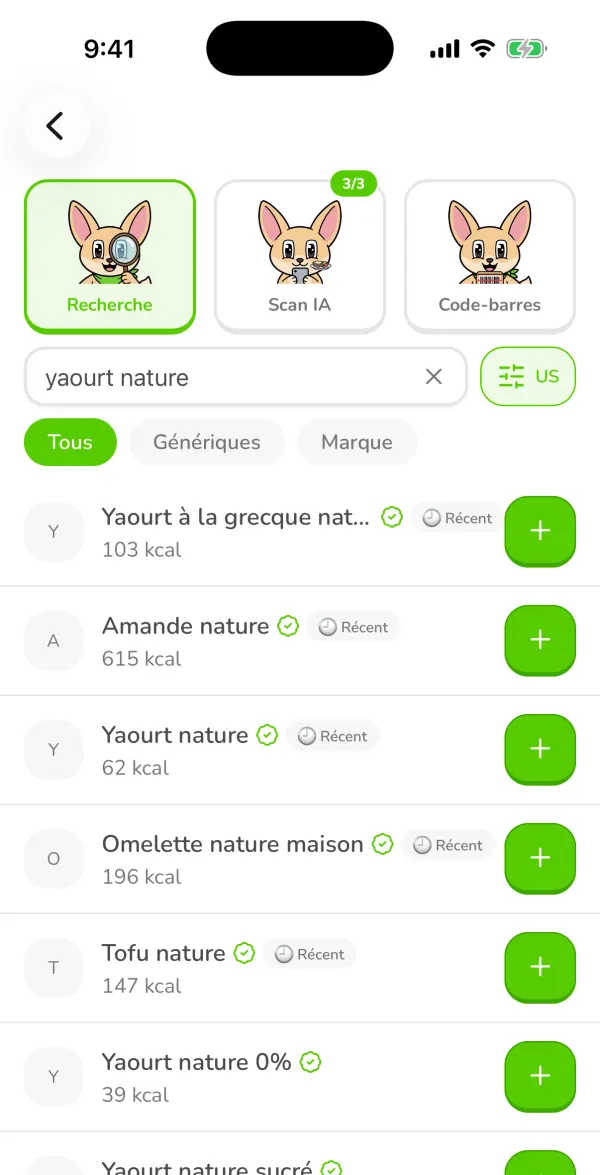
Search results for "yaourt nature" (plain yogurt) in Ubod, with the calories and a + button on each row Choose the portion and add it
The food's page shows the calories, protein, carbs and fat for the chosen portion, then the full nutrition facts. At the bottom, set the quantity and the unit (a pot, grams or a cup, depending on the food), then tap "Add to Meal Snacks". This is the button that actually logs the food.
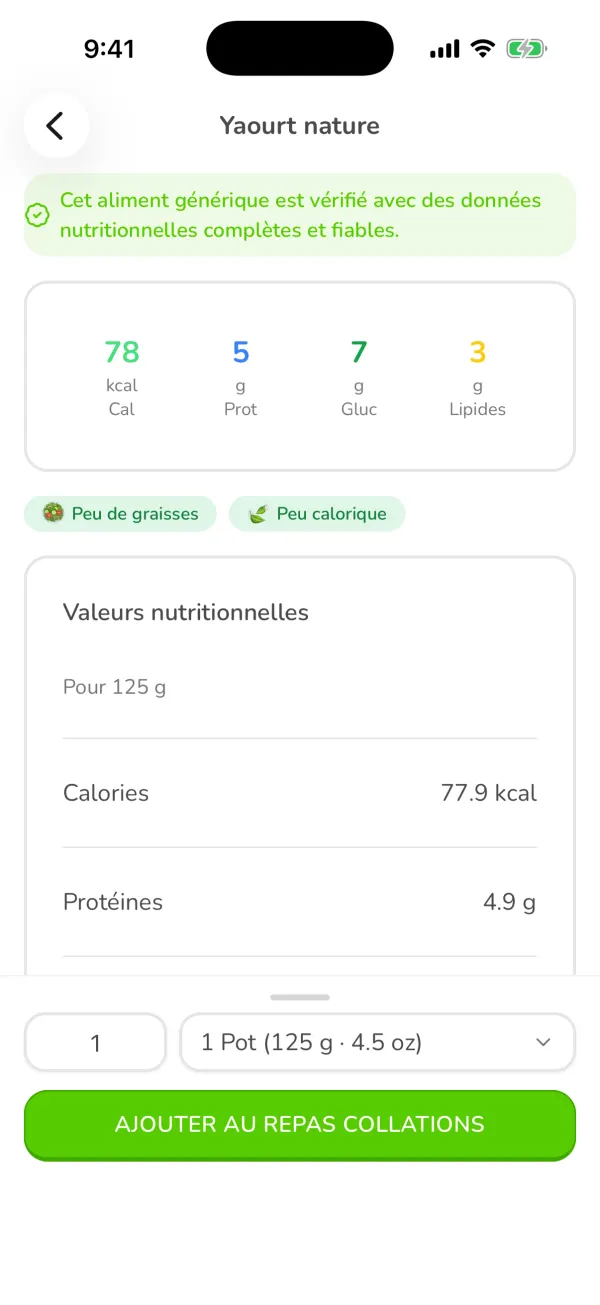
The page for a plain yogurt in Ubod with 78 kcal for a 125 g pot and the button to add it to Snacks Check your day
Back on the Meal screen, the meal shows its new calories (here Snacks goes to 78 / 177 kcal), and the day summary recalculates your calories left and the protein, carbs and fat bars.
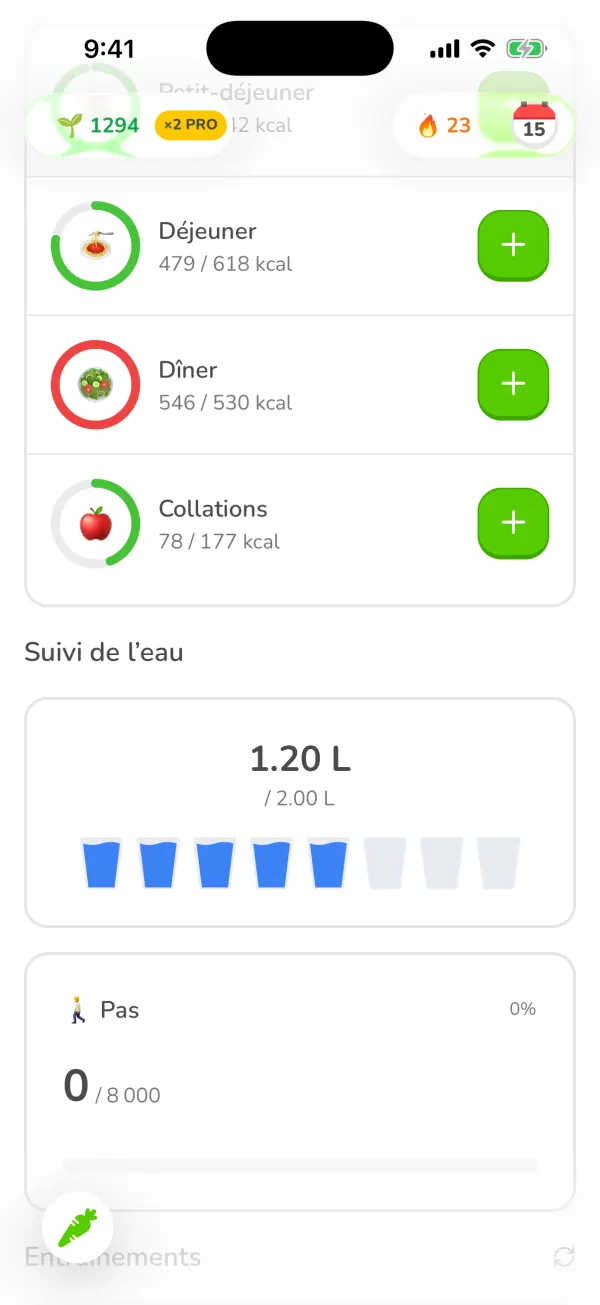
The Ubod Meal screen after adding a yogurt: Snacks shows 78 of 177 kcal
Guide 2 of 9
How do I log a recipe in Ubod?
In Ubod, open the Recipes tab, pick a recipe, set the number of servings you eat, choose the meal and the date at the bottom of the screen, then tap "Add to journal". The recipe's calories and macros are already calculated per serving.
Open the Recipes tab
Tap Recipes in the bottom bar. Under Discover, recipes are grouped by theme, such as "Top rated" or "Quick tonight" (under 30 minutes). Each card shows the prep time and the calories per serving. The "Search recipes" field finds a dish by name.
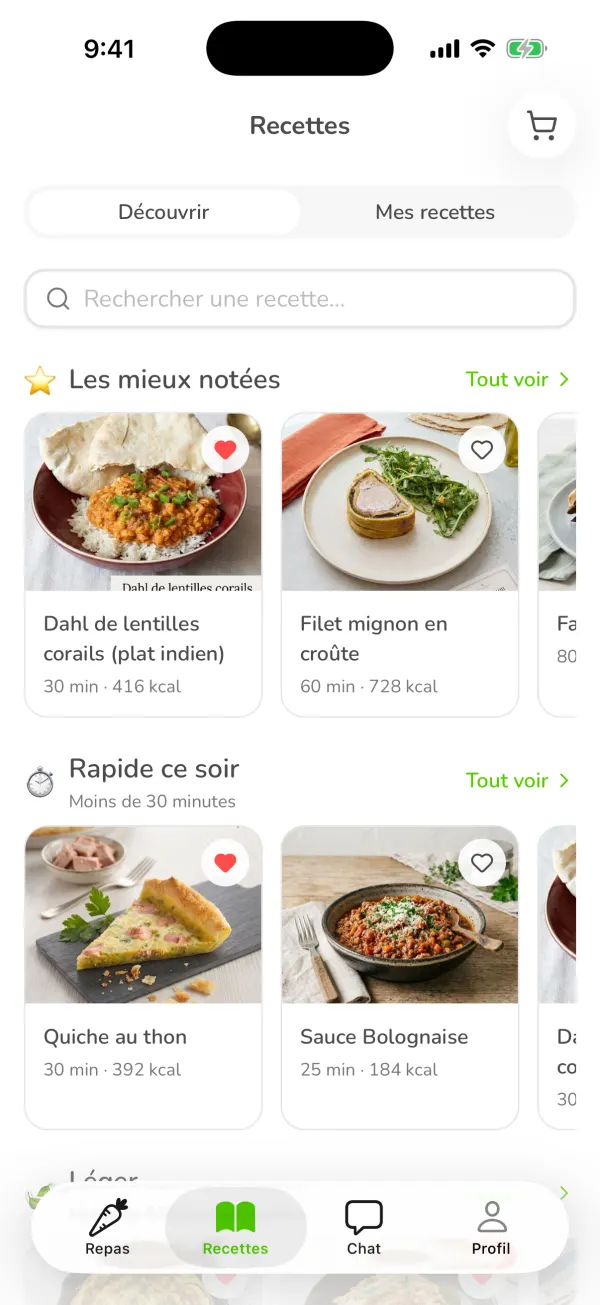
The Ubod Recipes tab with the Top rated and Quick tonight sections and the time and calories of each recipe Open the recipe
Tap a card. The recipe page shows the photo, the time, the difficulty, the number of servings and the rating from users. The heart at the top right adds it to your favorites.
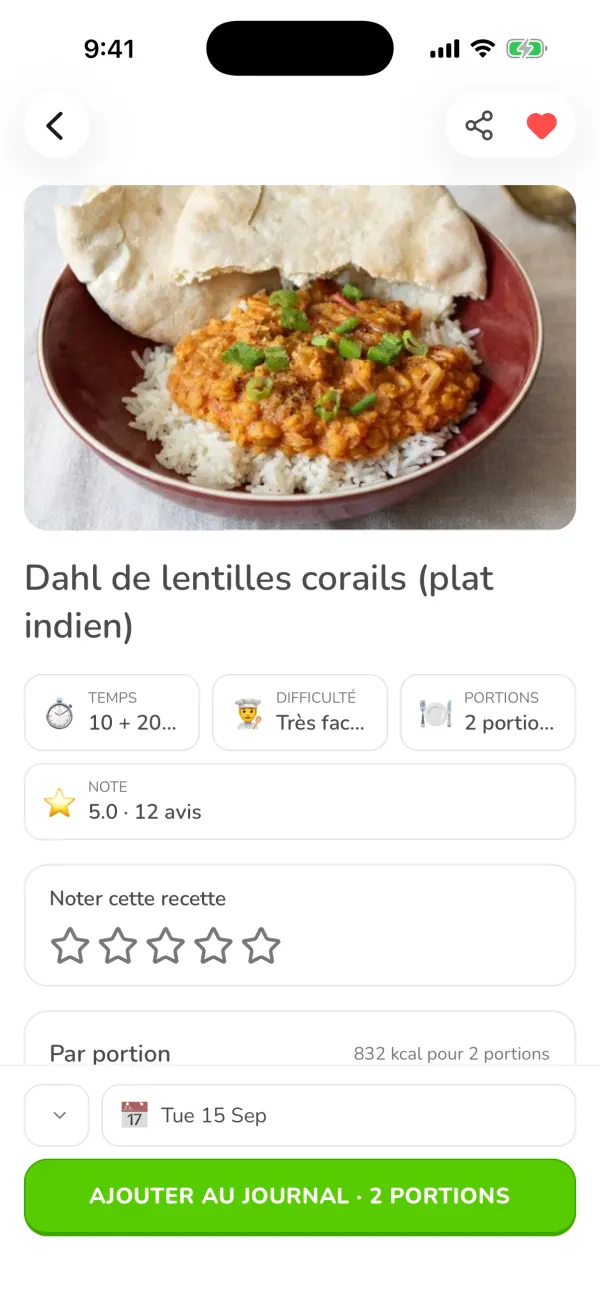
The red lentil dahl recipe page in Ubod with the time, the difficulty, the servings and the Add to journal button Set the number of servings
The "Per serving" block gives the calories, protein, carbs and fat of one serving. With the − and + buttons next to Portions, set how many servings you eat: the "Ingredients for" list and the button at the bottom update right away.
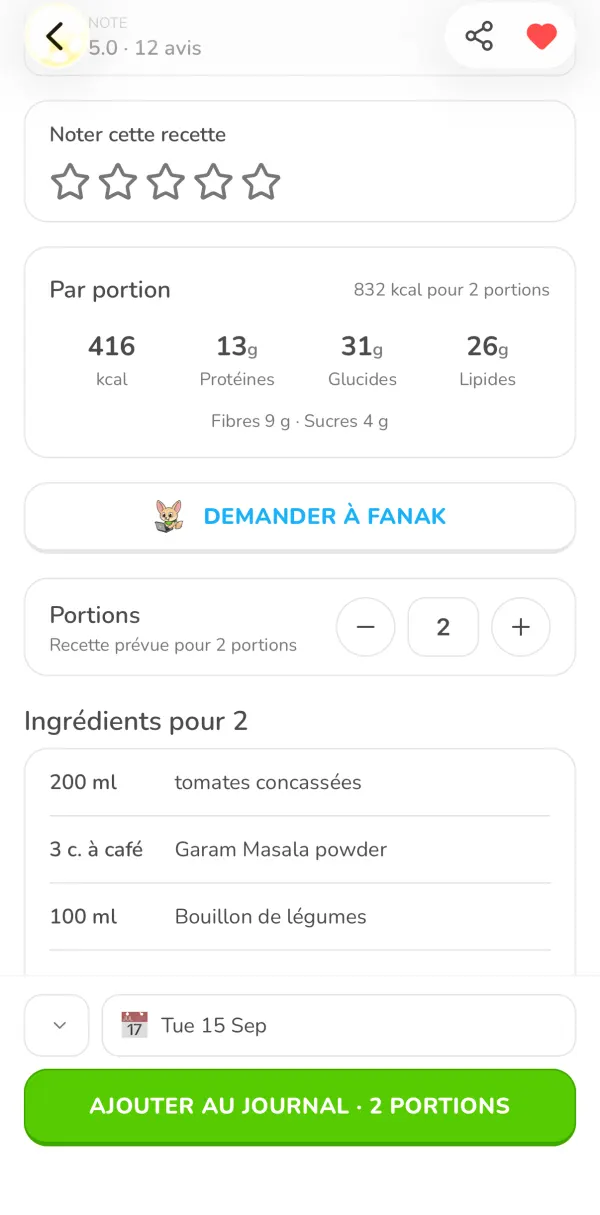
The Per serving block with 416 kcal, the servings setting and the ingredient list for 2 in Ubod Choose the meal, then add
At the bottom of the screen, the first menu picks the meal (Breakfast, Lunch, Dinner or Snacks) and the second one the date. Then tap "Add to journal · 1 serving". The recipe appears in the chosen meal with its calories and macros.
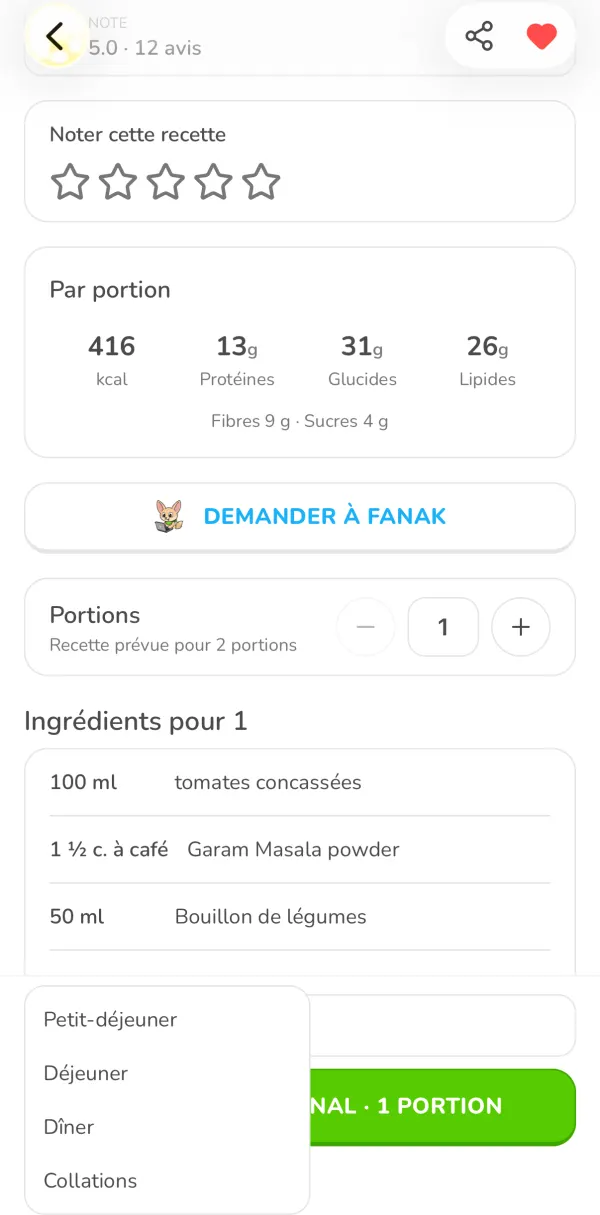
The meal picker open above the Add to journal button for one serving in Ubod
Guide 3 of 9
How do I take a photo of a meal with Ubod's AI scan?
In Ubod, tap the + on a meal, choose the AI Scan tab, take a photo of your plate (or pick one from your gallery), answer the AI's quick questions, check the foods and quantities it found, then tap the add button, for example "Add to Lunch". The AI estimates the calories, protein, carbs and fat of each food.
Open the AI Scan
From the Meal screen, tap the + on the right meal, then the AI Scan tab. The first time, Ubod shows three tips: fit the whole meal in the frame, every item should be visible, and check there is enough light. Tap "Take a photo".
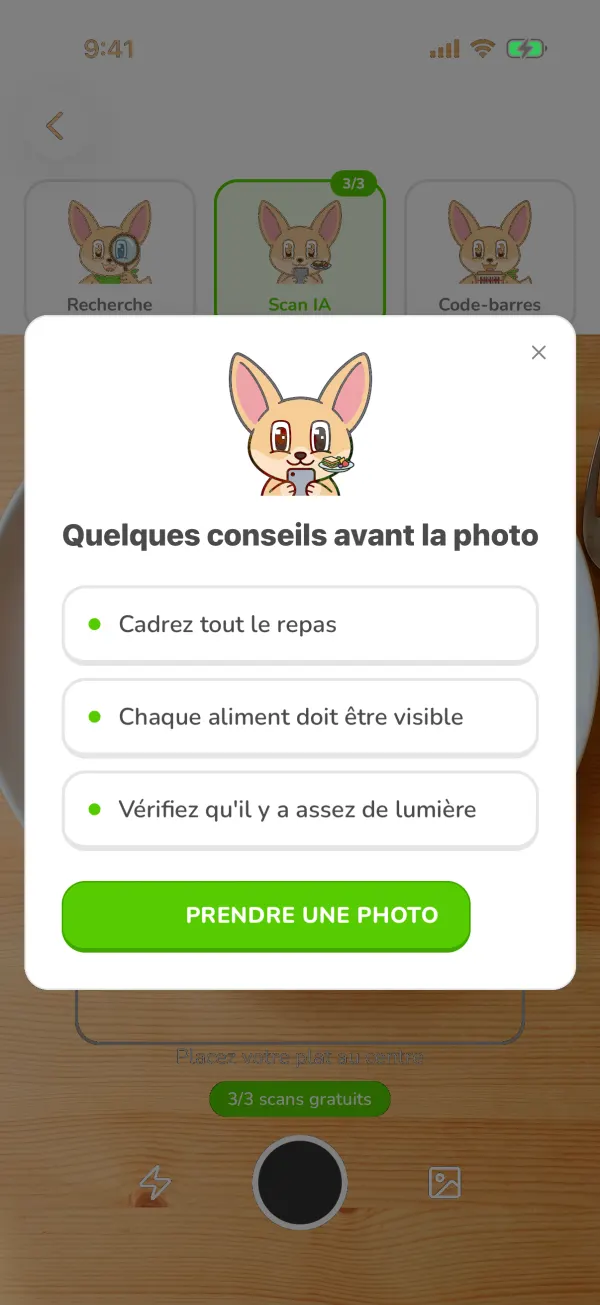
The tips Ubod shows before an AI Scan photo: fit the whole meal in the frame, make every item visible, have enough light Take a photo of your plate or pick one
Put the dish in the center of the frame and tap the shutter button. The icon at the bottom right opens your gallery if you already took the photo. When no camera is available, the screen shows the Gallery button right away.
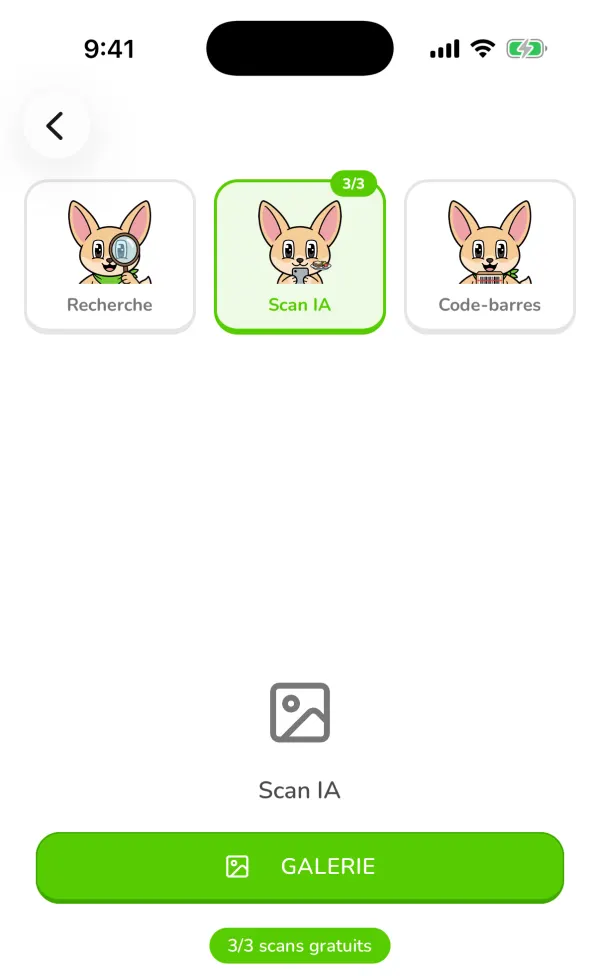
The Ubod AI Scan tab with the Gallery button and the free scan counter Answer the quick questions
When a detail changes the calories, the AI asks you: "Is the rice brown or white?", "Was the salmon cooked with fat?". Tap the right answer, or "Other…" to type it, then Apply changes. Skip keeps the first estimate.
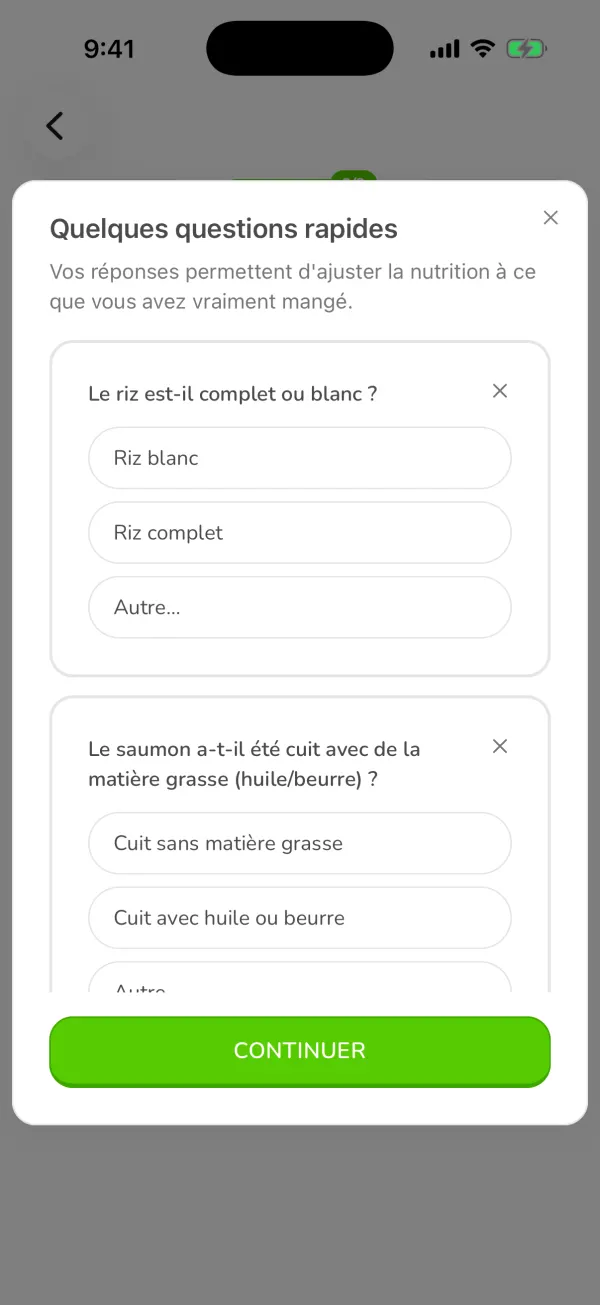
The Ubod AI Scan quick questions about the type of rice and how the salmon was cooked Check what the AI found
Ubod shows the photo, a name for the meal and each food it recognized with its estimated quantity and calories, for example grilled salmon, about 120 g, 268 kcal. "Verified data" marks a food matched with the Ciqual database. Remove an extra food with the cross. To fix something, type it in "Edit with AI", for example "the bacon is turkey bacon", then Apply changes.
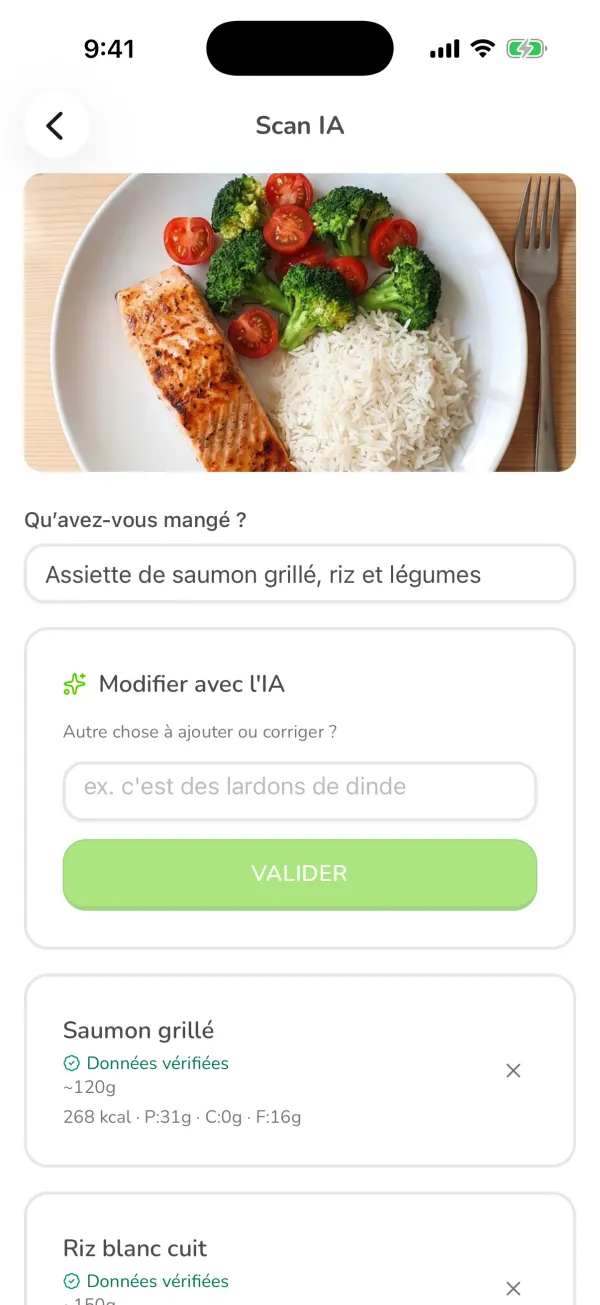
The Ubod AI Scan review screen with a photo of salmon, rice and broccoli and the foods it found Add the meal
At the bottom, "Estimated Nutrition" adds up the whole meal (here 546 kcal, 39 g of protein, 55 g of carbs, 18 g of fat). Tap the add button, which names your meal (for example "Add to Dinner"), to log it, or "Save as recipe" to keep it and add it again later with one tap.
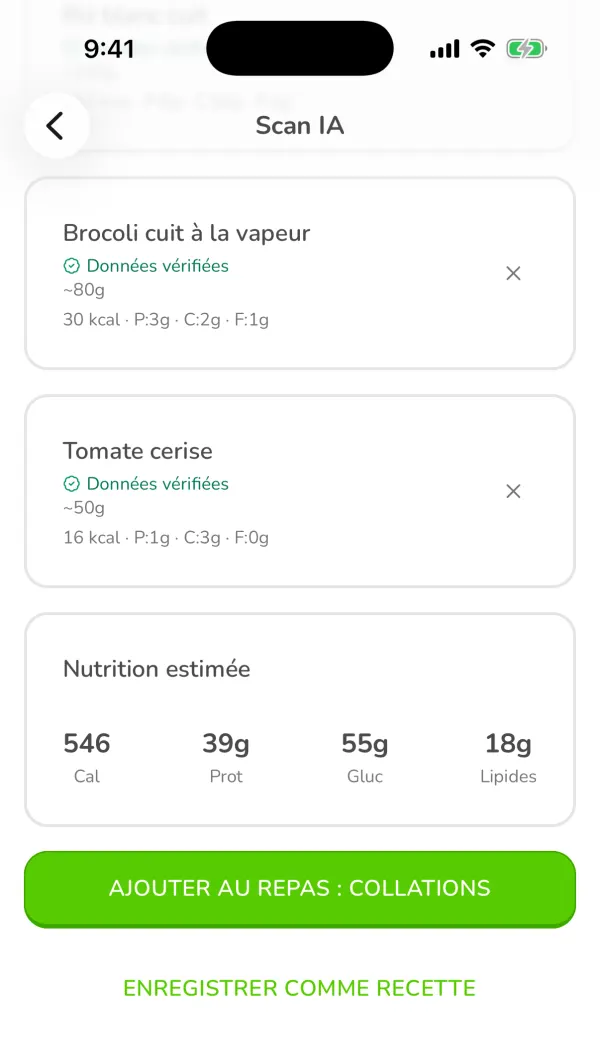
The Estimated Nutrition total of 546 kcal with the add button and the Save as recipe button in Ubod
Guide 4 of 9
How do I search for a food or a product in Ubod?
In Ubod, tap the + on a meal and type the name or the brand in the Search tab. The All, Generic and Branded filters sort the results, and the button to the right of the field sets the country and language of the products. A product you can't find can be added with the AI Scan or found with the chat.
Open the search
Tap the + on a meal in the Meal tab. The Search tab is selected by default. Your recent foods show up before you even type.
The Ubod Search tab with the Search by name or brand field and the Recent list Search by name
Type at least two characters, for example "plain yogurt". Verified generic foods have a green check mark and show their calories per 100 g.
The search results for "yaourt nature" (plain yogurt) in Ubod with the verified foods Search for a branded product
Type the brand or the product name, for example "nutella", then tap the Branded filter. Each product shows its photo, its brand and its calories. Generic keeps only basic foods, and All mixes both.
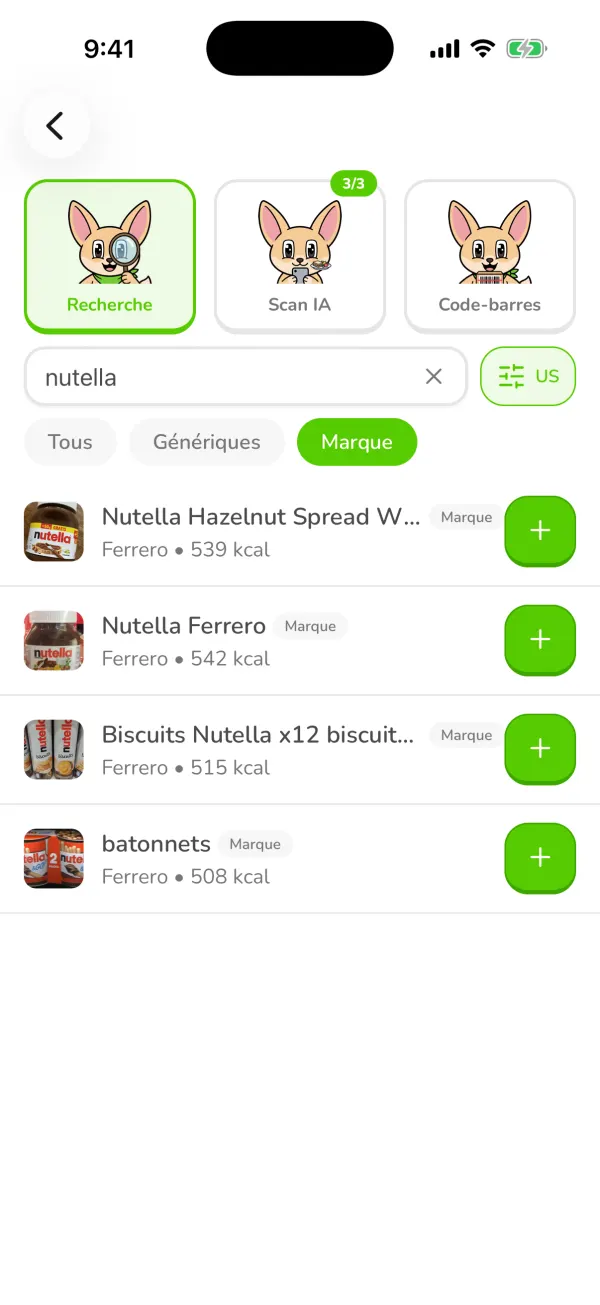
The search for nutella filtered on Branded in Ubod, with the Ferrero products and their calories Open the product page
A branded product's page shows its photo, its brand and its Nutri-Score, the calories and macros of the portion, flags such as "High Sugar", and "Better Alternatives". Choose the portion at the bottom and add it to your meal.
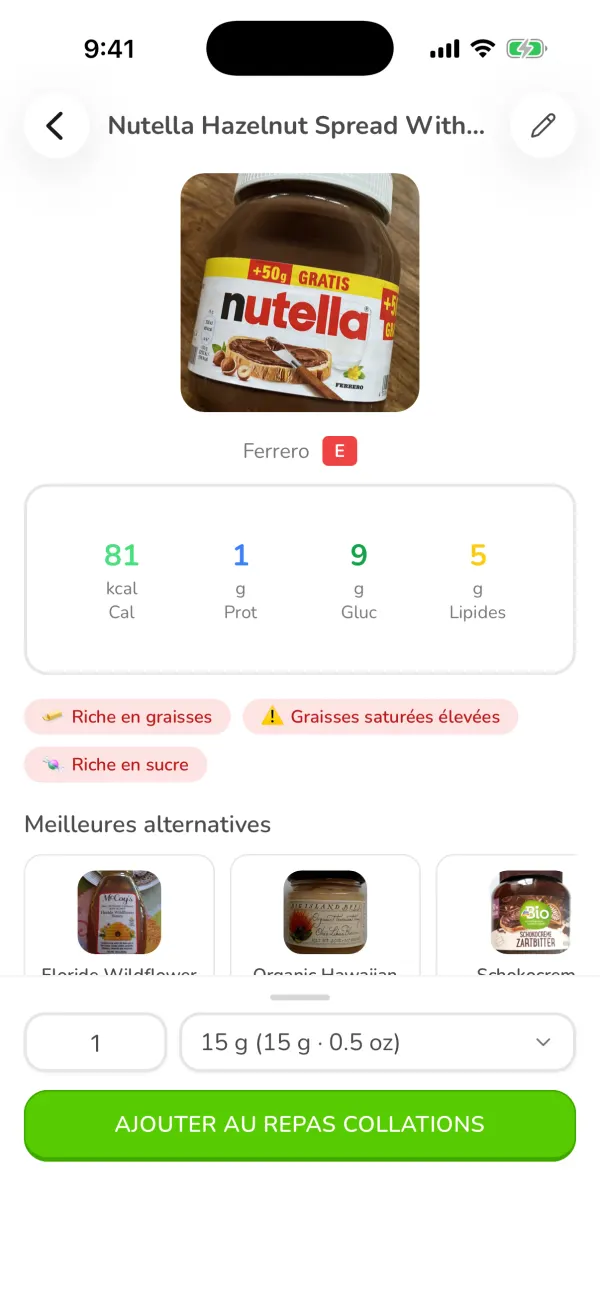
The Nutella product page in Ubod with the Nutri-Score, the calories per portion and the better alternatives
Guide 5 of 9
How do I scan a barcode in Ubod?
In Ubod, tap the + on a meal, choose the Barcode Scanner tab and point your camera at the product's barcode. Ubod opens its page with the calories and macros: choose the portion and tap "Add to Meal".
Open the Barcode Scanner tab
On the Meal screen, tap the + on the right meal, then the Barcode Scanner tab, to the right of Search and AI Scan.
The three tabs Search, AI Scan and Barcode Scanner on the Ubod add screen Aim at the barcode
Place the barcode in the frame, flat and sharp. It reads automatically, so there is no need to tap. In a dark place, the lightning bolt at the bottom of the screen turns on the flashlight.
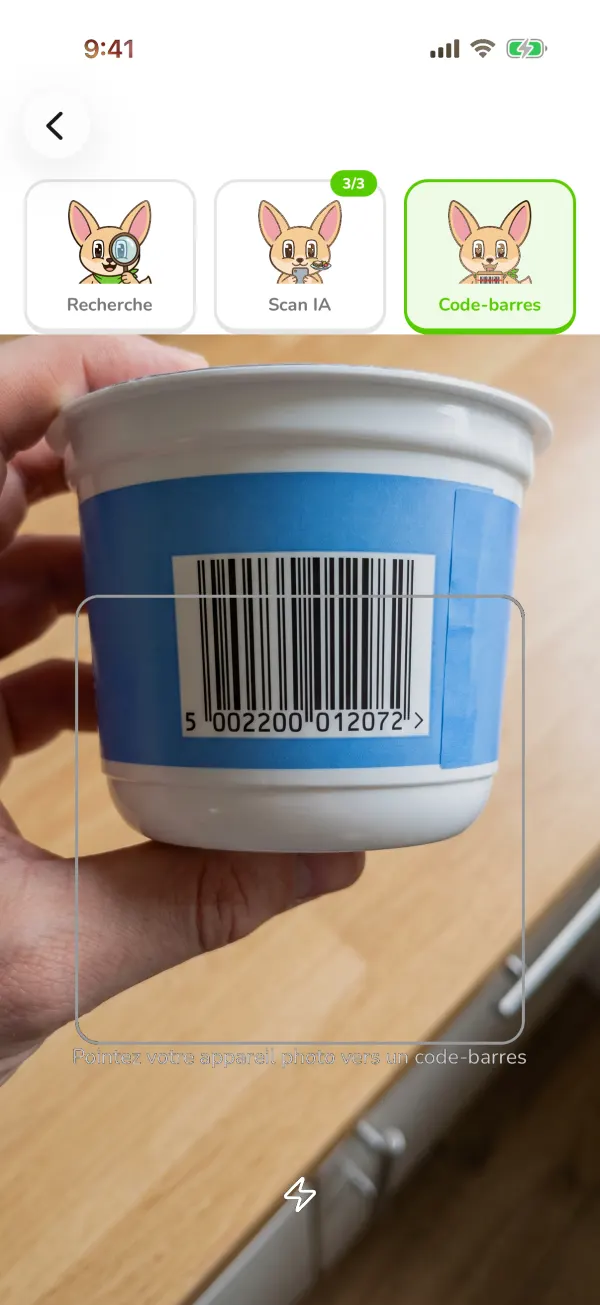
The Ubod barcode scanner pointed at the barcode on a yogurt pot Check the page and add
The product page opens: brand, Nutri-Score, calories and macros of the portion, nutrition flags. Set the quantity at the bottom, then tap "Add to Meal".
A branded product's page in Ubod with its Nutri-Score, its calories and the Add to Meal button
Guide 6 of 9
How do I use the Fanak chatbot in Ubod?
In Ubod, open the Chat tab and write to Fanak like you would to a friend, or tap a suggestion. Tell him what you ate: he prepares the entry with the calories and you tap Confirm. You can also ask him for a meal or snack idea, or to plan your recipes around your goal.
Open the Chat tab
Tap Chat in the bottom bar. A new conversation opens on "Your AI Nutritionist" and four suggestions: log an apple for breakfast, ask what to eat for lunch, plan the week's recipes, or log two glasses of water. The pencil at the top right starts a new conversation, and the icon at the top left brings back your previous ones.
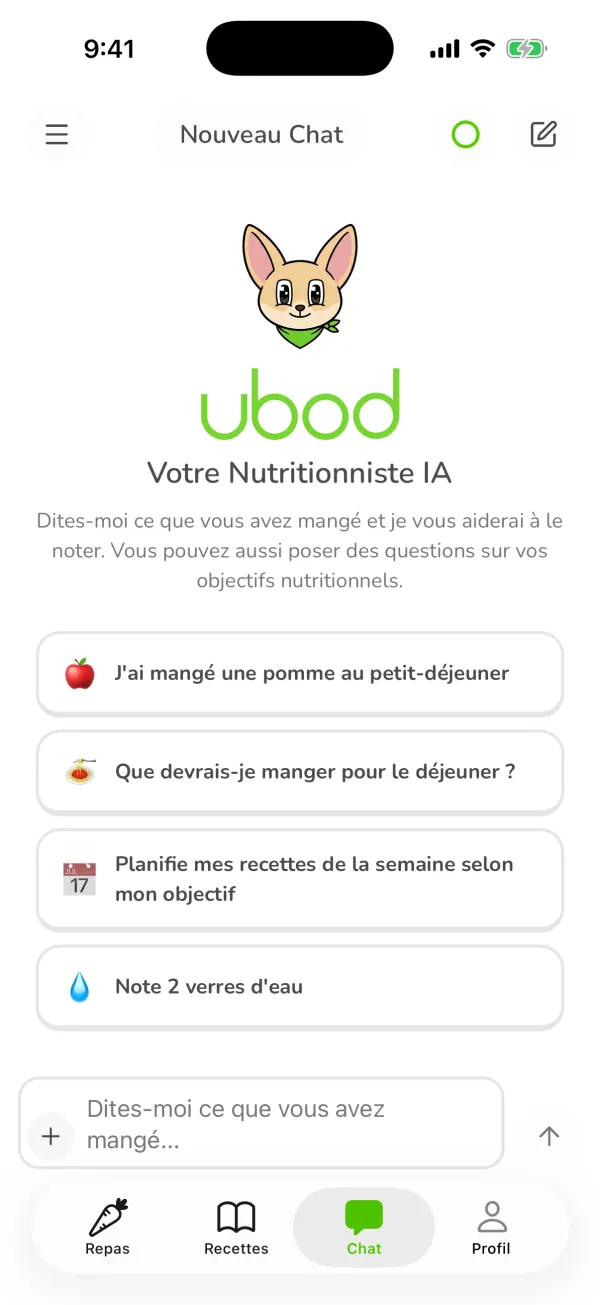
The Ubod New Chat screen with Fanak, Your AI Nutritionist and four suggested messages Tell him what you ate
Type in the "Tell me what you ate" field at the bottom, for example "I had an apple for breakfast". Fanak looks up the food and shows a card with the meal, the day, the quantity and the calories (here a 150 g apple, 81 kcal, at breakfast). Nothing is logged until you tap Confirm. Dismiss cancels it.
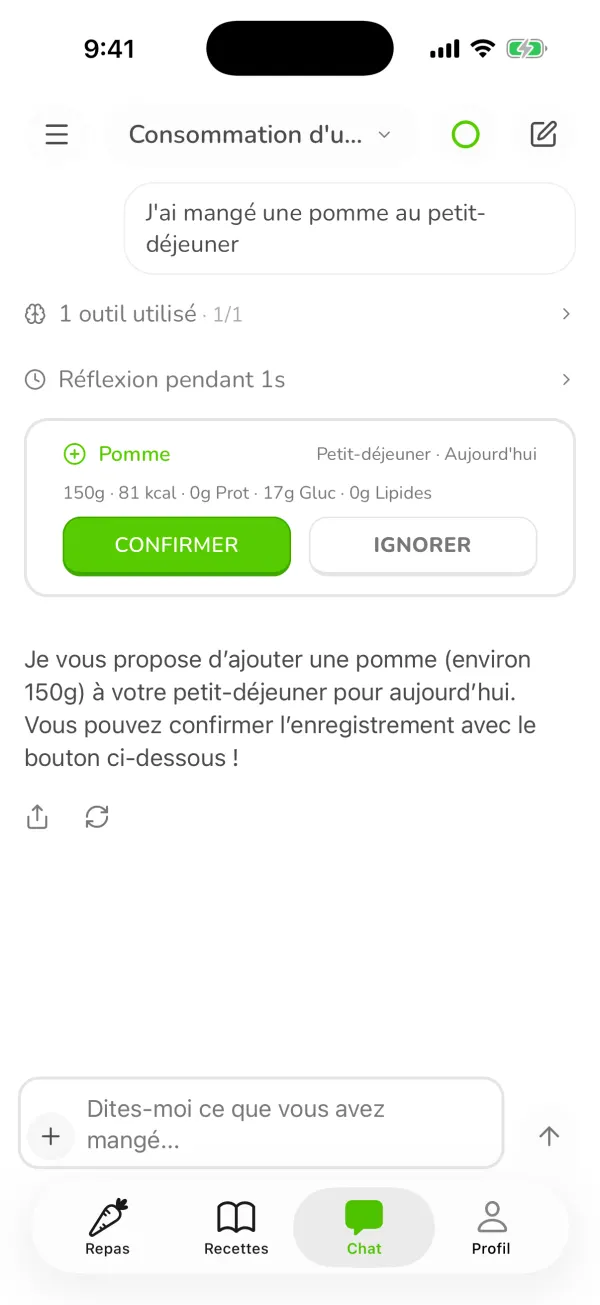
Fanak offers to add a 150 g apple, 81 kcal, to breakfast, with the Confirm and Dismiss buttons Ask your questions
Ask for a high-protein snack idea, a light dinner or an explanation of your macros. Fanak answers in a few seconds, taking your goal and your day into account. The line that counts the tools he used shows what he checked, for example your diary or your targets.
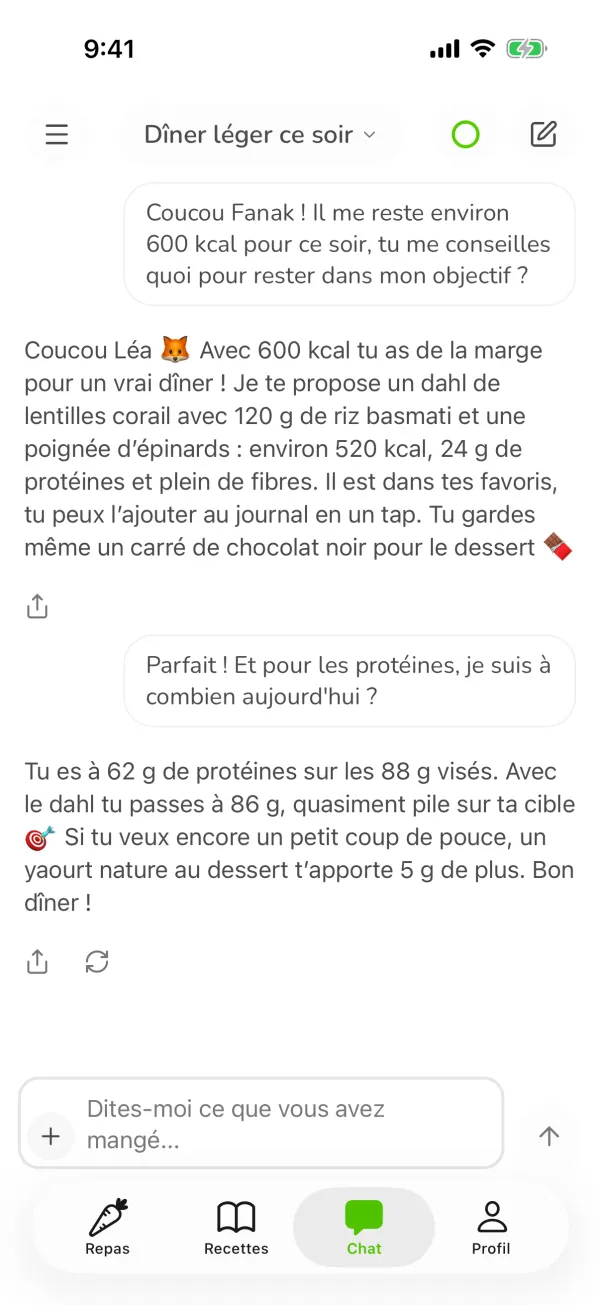
Fanak answers the question "A high-protein snack idea" with fromage blanc, edamame and almonds
Guide 7 of 9
How do I change my goal in Ubod?
In Ubod, open the Profile tab, tap the gear at the top right, then My Goals. Tap Goal to choose between losing weight, maintaining your weight, gaining weight or building muscle, then tap Save. Ubod recalculates your calories and macros for the day right away.
Open Profile, then the gear
Tap Profile in the bottom bar. The screen sums up your calories left, your step goal and your roadmap to your goal weight. Tap the gear at the top right to open Settings.
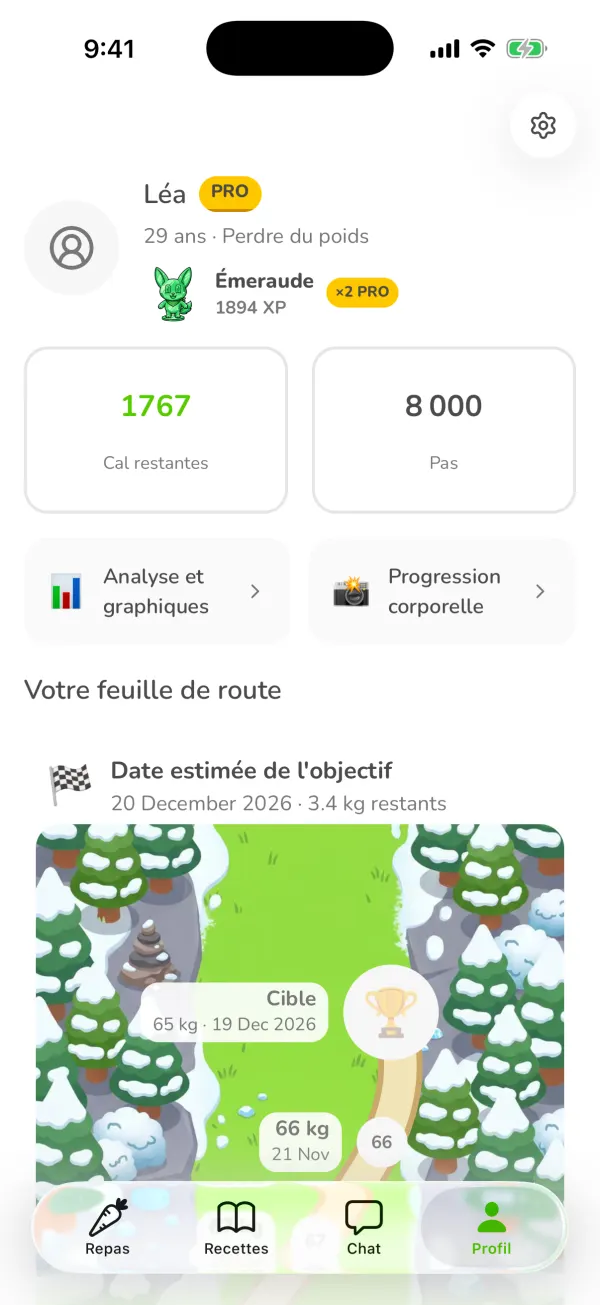
The Ubod Profile tab with the calories left, the step goal, the roadmap and the settings gear Tap My Goals
In the Settings list, My Goals is the third row, under Account and Profile.
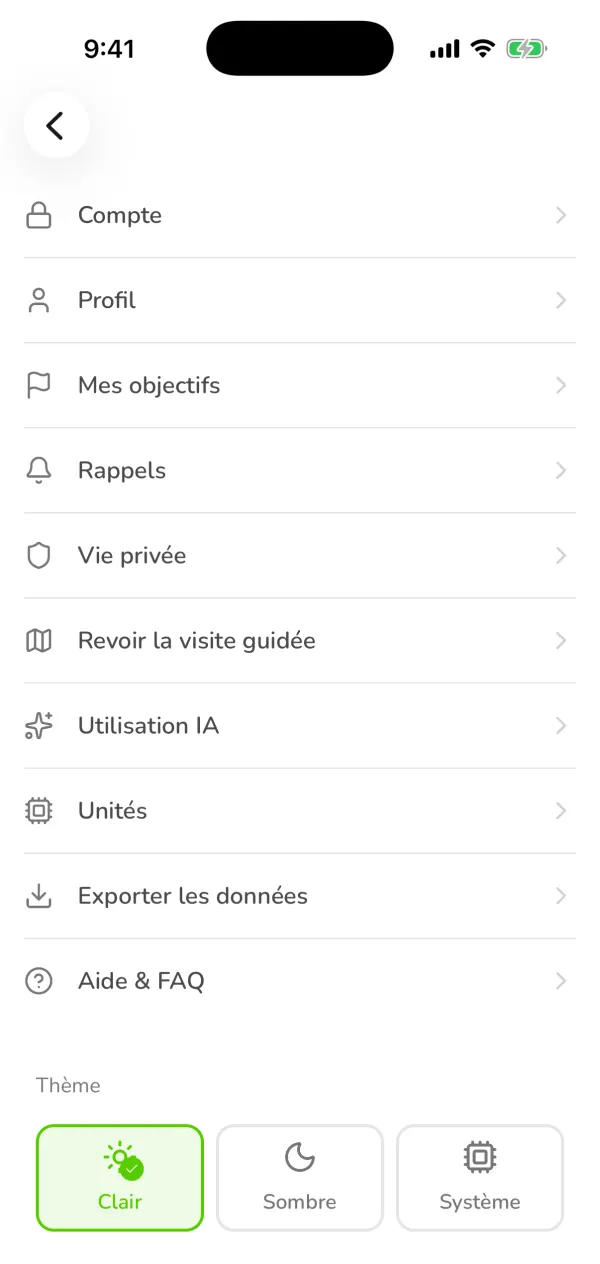
The Ubod Settings screen with Account, Profile, My Goals, Reminders, AI Usage, Units and the theme Choose the row to change
My Goals brings together everything that sets your targets: your goal, starting weight, goal weight, activity level, weekly goal, step goal, water tracker and nutrient goals. Each row shows its current value.
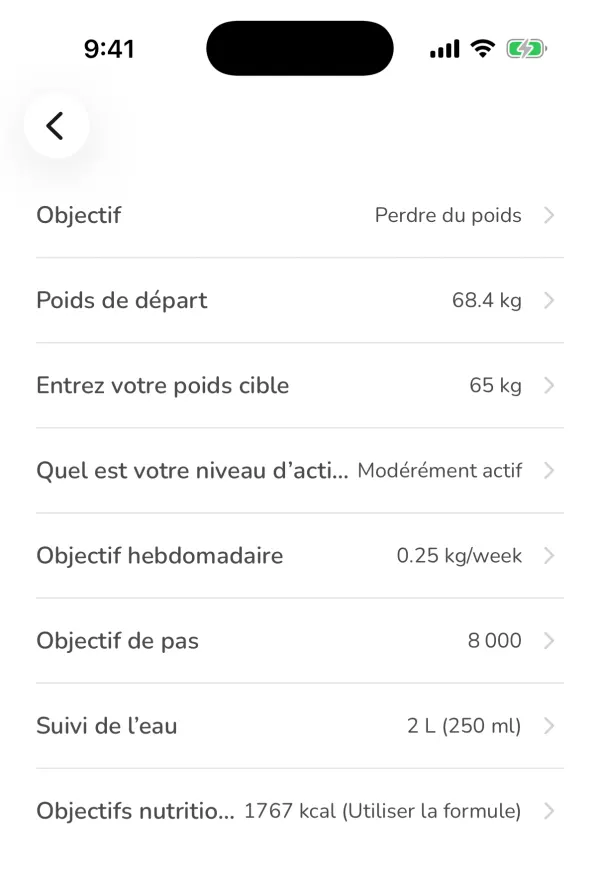
The Ubod My Goals screen with the Lose weight goal, a 65 kg goal weight, 8,000 steps and 1,767 kcal Change your goal and save
Tap Goal. Under "What's your goal?", choose Lose Weight, Eat healthier without losing weight, Gain Weight or Build Muscle, then tap Save. Then check your goal weight and your weekly goal: from Slow to Very Fast, Ubod shows the recommended pace.
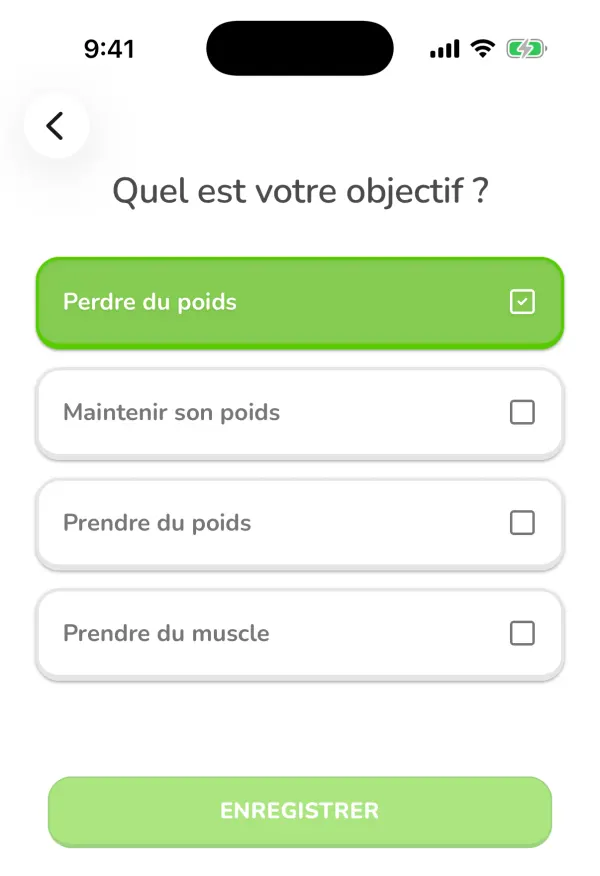
The goal choice in Ubod: lose weight, maintain your weight, gain weight or build muscle Adjust your calories and macros
Nutrient Goals shows the calories calculated for you ("Use Formula") or lets you set your own number with Custom. Below it, the macro split offers Standard (Balanced), Low Carb, High Protein, Low Fat or Custom, with the grams of carbs, protein and fat per day. Protein is set from your body weight (for example 1.6 g per kg), not from a fixed percentage.
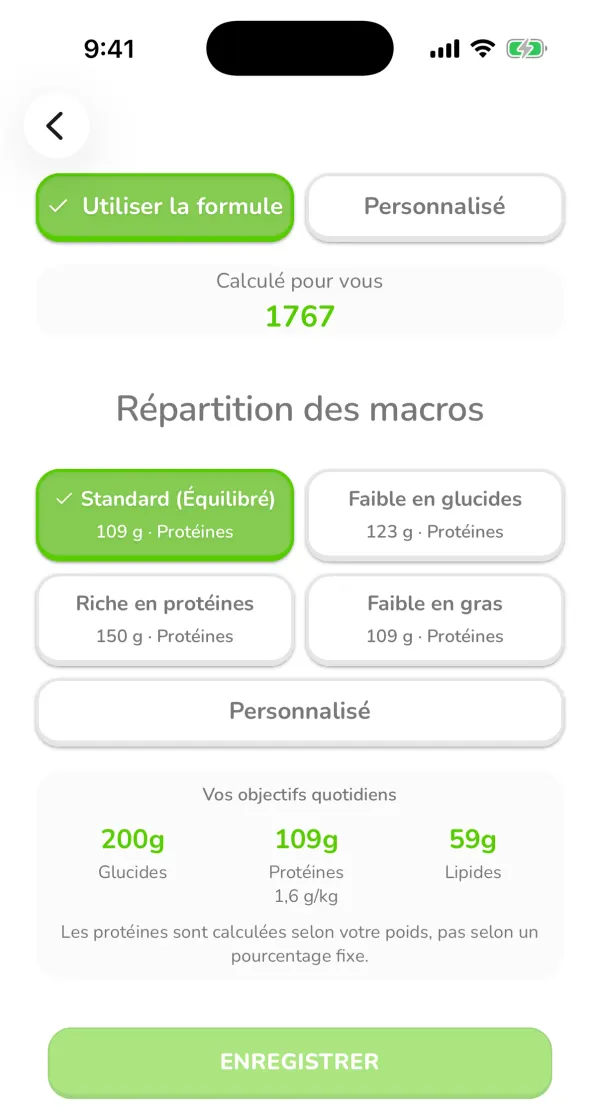
Ubod's nutrient goals with 1,767 kcal calculated, the Standard split and 200 g of carbs, 109 g of protein and 59 g of fat
Guide 8 of 9
How do I change Ubod's settings?
In Ubod, you open the settings from the Profile tab, with the gear at the top right. The Settings screen brings together Account, Profile, My Goals, Reminders, Privacy, Replay app tour, AI Usage, Units, Export Data and Help & FAQ, plus the choice of a light, dark or system theme.
Open Settings
Tap Profile in the bottom bar, then the gear at the top right. Each row opens a settings screen. At the bottom, Theme switches the app to Light, Dark or System (the app then follows your phone's setting).
The Ubod Settings screen with Account, Profile, My Goals, Reminders, Privacy, AI Usage, Units, Export Data, Help & FAQ and the theme Edit your profile
Profile holds your first name, last name, sex, date of birth and height. Tap a row to change it. Sex, age and height are used to calculate your calories: your targets adjust as soon as you change them.
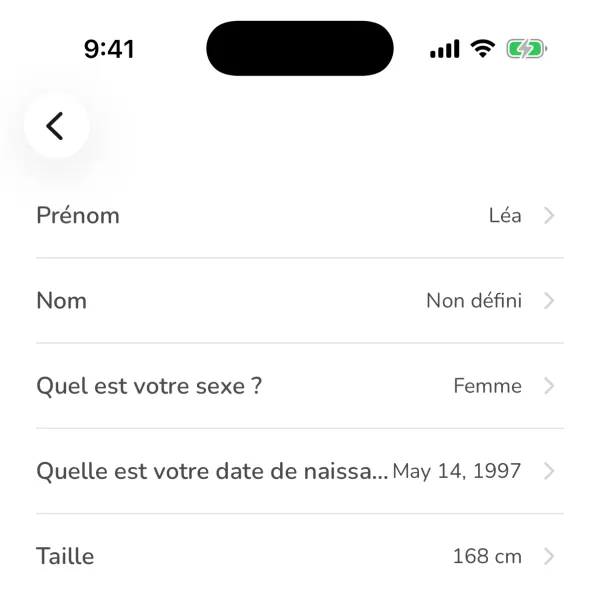
The Profile settings screen in Ubod with the first name, last name, sex, date of birth and height Set your reminders
Reminders turns each notification on or off and sets its time: the streak reminder, sent as a notification and by email when your streak is in danger, the meal reminders (breakfast, lunch, dinner, snack), the daily weigh-in and three reminders to drink water. Tap the time to change it, and the switch to turn the reminder on or off.
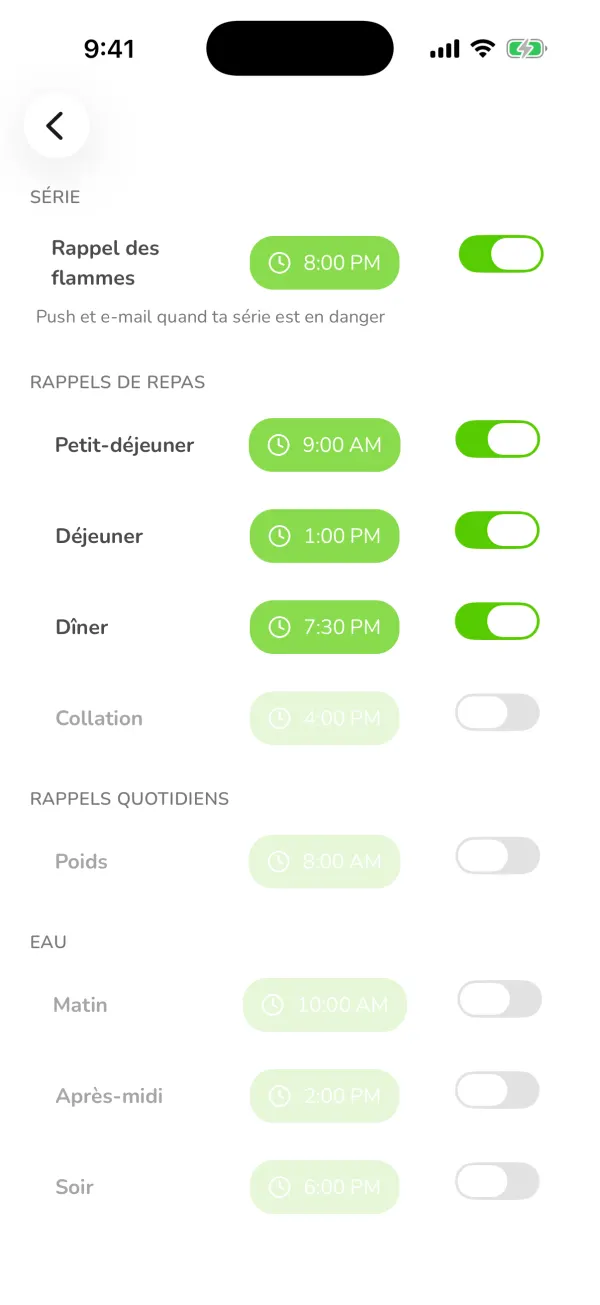
Ubod's reminders: streak reminder, meal reminders, weight reminder and water reminders with their times and switches Choose your units
Units shows weight, height, energy and portions. The Metric / Imperial switch changes kilograms and centimeters to pounds and feet. Tap Save to apply the change across the app.
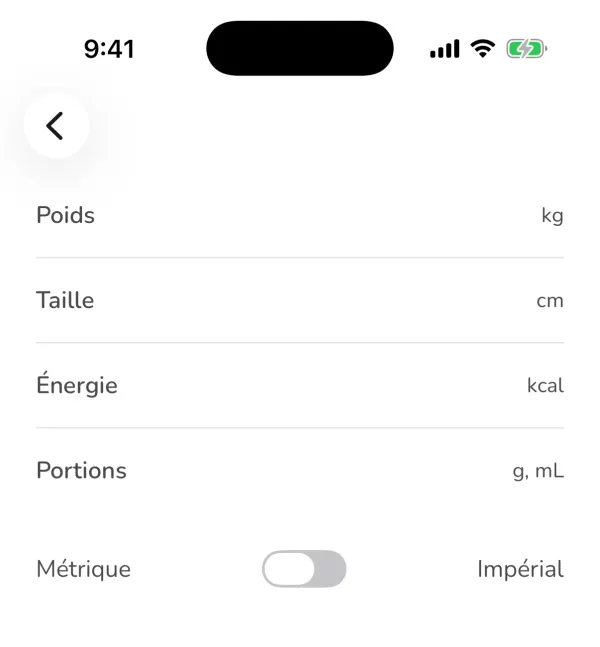
The Ubod Units screen with weight in kg, height in cm, energy in kcal and the Metric or Imperial switch
Guide 9 of 9
How do I use Ubod in ChatGPT and Claude?
Ubod has a connector for ChatGPT and Claude: an MCP server at https://api.ubod.app/mcp. Add it in the assistant's settings, sign in to your Ubod account, then type what you ate: the assistant logs your meals, water, weight and exercise, shows your day and your calories left, and finds recipes. Everything is saved to your account and shows up in the app.
Add Ubod in Claude
In Claude, open Customize, then Connectors, and tap "Add custom connector". Name it Ubod, paste the address https://api.ubod.app/mcp and tap Add. If Ubod already appears in the connector directory, just search for "Ubod" and tap Connect.
Or add Ubod in ChatGPT
In ChatGPT on the web, open Settings, then Security and login, and turn on Developer mode. Then open the ChatGPT apps page, tap + to create an app, name it Ubod, paste the address https://api.ubod.app/mcp and choose OAuth authentication. Once Ubod is in the ChatGPT directory, you will only need to search for it and tap Connect.
Sign in to your Ubod account
The assistant opens the Ubod sign-in page. Sign in with Google, Apple, a code sent by email or your password, then allow access. You come back to the conversation. If your account has no profile yet, the assistant asks you a few questions (sex, date of birth, height, weight, goal, activity) to calculate your calorie goal.
Type what you ate
Write like you would to a friend: "For breakfast I had a 50 g chocolate rice cake, 15 g of Nutella and a hard-boiled egg". The assistant looks up each food in the Ubod database, logs them to the right meal and shows your day: calories left, protein, carbs, fat and the details of each meal.
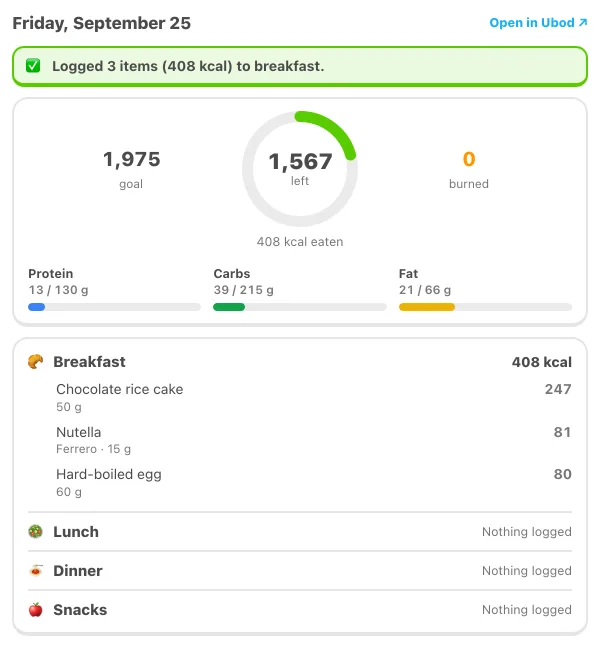
The Ubod day card in the assistant: 3 foods logged to breakfast (408 kcal) and 1,567 kcal left of a 1,975 kcal goal Track your week
Ask "How many calories do I have left today?" or "Show my progress for the week". The progress card shows your streak, your days logged, your calories day by day against your goal and your weight curve.
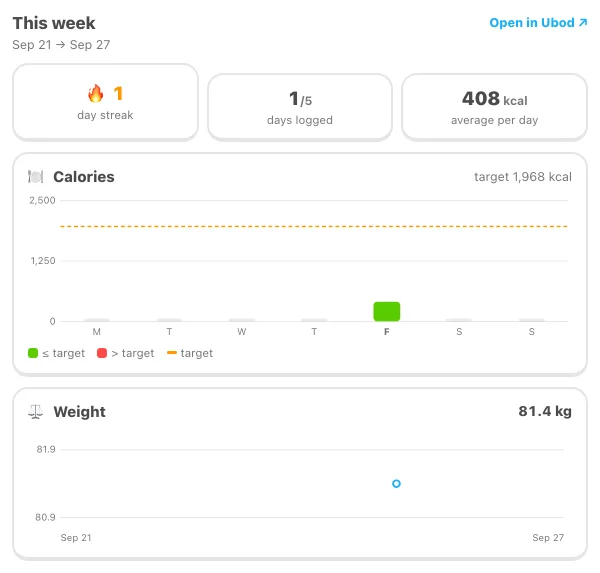
The Ubod weekly progress card: day streak, days logged, average calories per day, calories for each day against the target and the weight curve Find a recipe and log it
Ask "Find me a pancake recipe": the assistant shows Ubod recipes with their photo and their calories per serving. Open one to see the ingredients and the steps, then say "Add one serving to my breakfast".
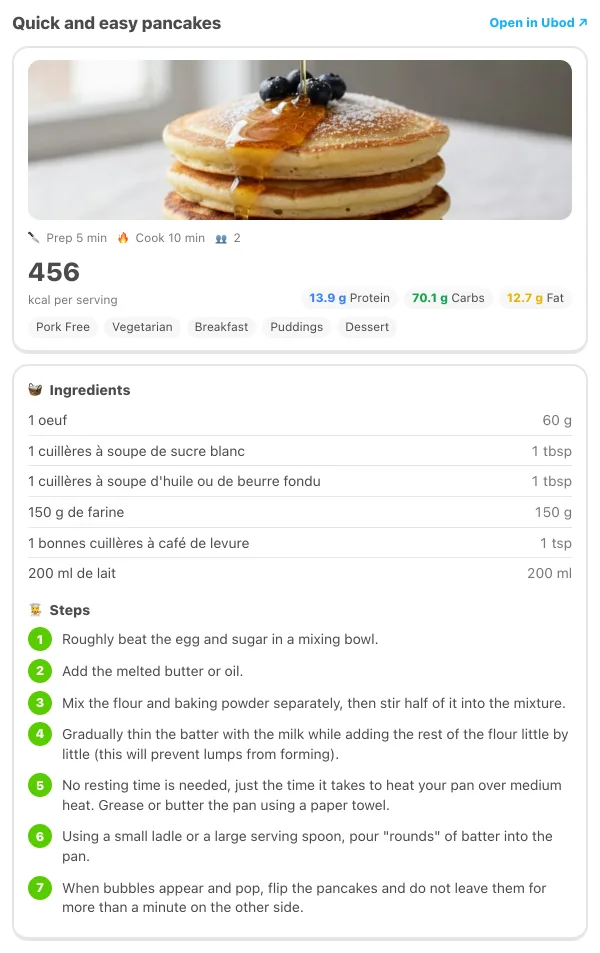
A recipe card from Ubod in the assistant: quick and easy pancakes, 456 kcal per serving, with the ingredients and numbered steps

Try Ubod for free
Calories, photo scan, barcode, recipes and Fanak, your nutrition coach.